
Blog
Before You Buy an Upgradeable Laptop: 7 Checks That Matter

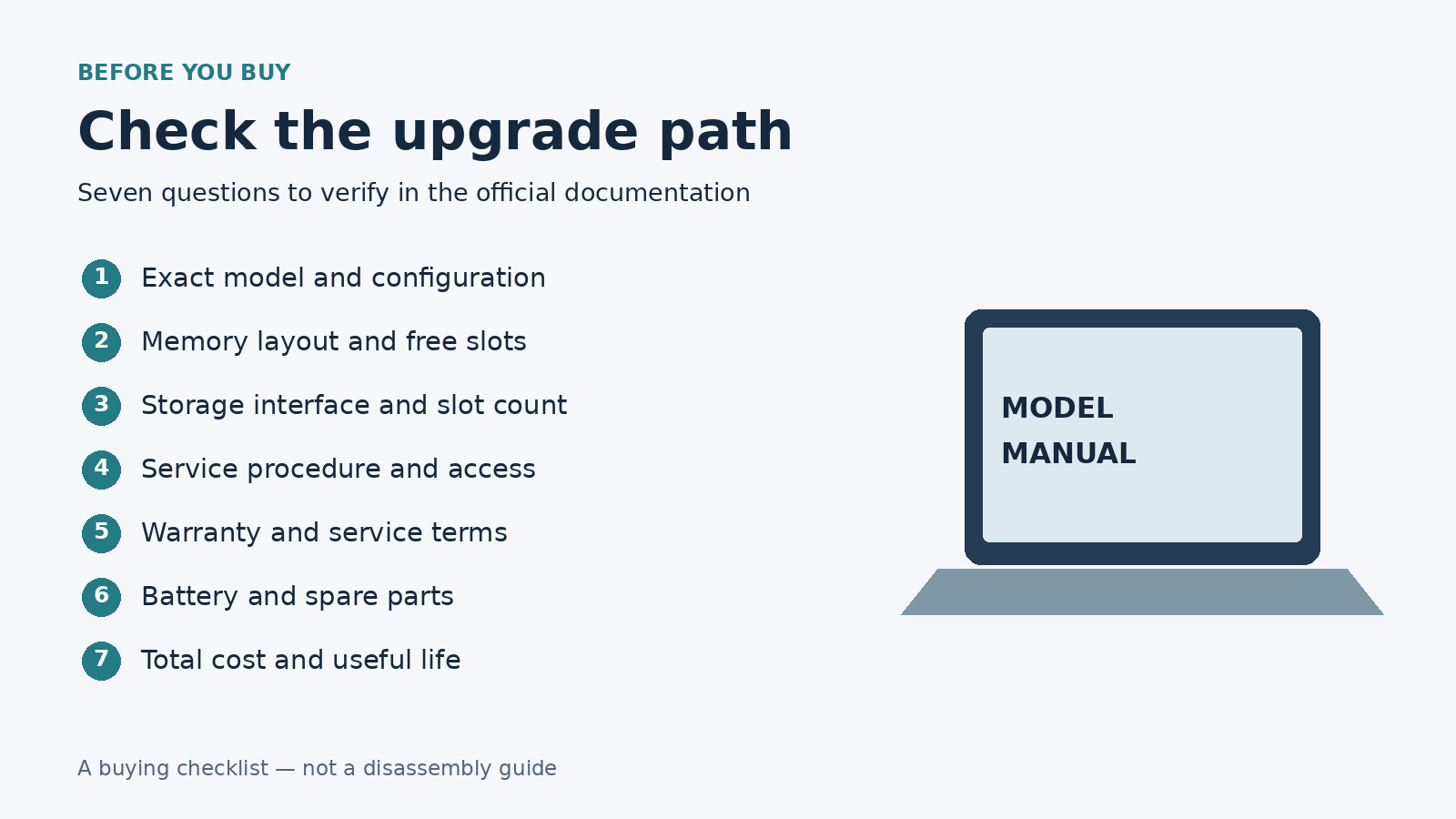
A laptop advertised with “16GB RAM and a 512GB SSD” tells you what is installed, but very little about what you can change later. Extra memory might require replacing existing modules. More storage might mean removing the original drive rather than adding another. A component can also be replaceable without being straightforward for an owner to service.
Before buying, build a small evidence file for the exact machine: its configuration identifier, official specification sheet, service instructions and written service terms. These seven checks help turn a vague promise of future upgrades into a practical ownership plan. They are buying checks, not instructions for opening a laptop.
1 Identify the exact model and configuration
Start with the complete model number, generation and configuration code. A family name is not enough: machines with similar names can use different motherboards, processors and internal layouts. Regional versions may also ship with different parts or accessories. Ask the seller to identify the specific unit being offered and match that identifier against the manufacturer’s support records.
Save the specification page or PDF alongside the listing. Separate platform options from the components actually installed. A specification listing several SSD capacities does not mean the laptop includes several drives, and a maximum memory figure does not tell you how many slots are free.
For a used machine, ask whether its configuration has changed since manufacture. Treat the original specification as a starting point, then request confirmation of the present memory arrangement and installed drive. Avoid sharing serial numbers publicly; use them privately with the manufacturer or seller when needed.
2 Establish whether the memory can be replaced
Ask three separate questions: Is the memory soldered, socketed or a mixture? How much is installed? What expansion arrangement is supported? Socketed memory can offer an upgrade route, but two occupied slots may mean replacing modules rather than simply adding one. In a mixed design, only part of the installed memory may be replaceable.
Lenovo’s official ThinkPad T14 Gen 5 Intel specification lists two DDR5 SODIMM slots [1]. That is useful evidence of the platform’s memory layout; it does not establish whether either slot is empty in a particular unit. Ask for that information separately.
Match the memory generation, module format and supported capacity to the official documentation. Do not buy modules solely because their advertised speed matches the listing. If future expansion is essential and the documentation does not settle compatibility, get a written answer from manufacturer support before committing to the laptop or the upgrade.
3 Distinguish storage replacement from expansion
Confirm the number of supported storage drives, the slot arrangement, the drive dimensions and the interface. “M.2” describes a form factor; it does not by itself establish that a drive and laptop use compatible interfaces. Check whether the documented storage connection uses SATA or PCIe NVMe, and verify the supported physical length.
For example, the same Lenovo specification lists one M.2 2280 PCIe 4.0 x4 storage slot [1]. In that layout, a larger internal SSD would normally replace the existing drive rather than occupy a second storage slot. An unrelated internal connector should never be assumed to accept an SSD.
A replacement also brings migration work. Budget for a verified backup, an appropriate transfer or reinstall method, and any adapter or enclosure needed. Keep account credentials and encryption recovery information accessible before service. Ask who is responsible for restoring the operating system and checking that your data is intact afterward.
4 Read the service procedure before buying parts
Find the official service or maintenance manual for the exact model. Look at the relevant component procedure and its prerequisites, rather than relying on a teardown video of a similar laptop. Check the required tools, fasteners, cover removal steps and any battery isolation instructions. A removable part may still sit behind delicate clips or cables.
Dell’s Latitude 5490 owner’s manual includes a memory removal procedure with base cover and battery prerequisites [2]. This illustrates why “replaceable memory” is only one part of the decision: access and preparation matter too. Follow the complete current instructions for your own machine rather than applying this example to another model.
Decide whether the procedure suits your experience. If it does not, obtain a technician’s quote before buying. Ask whether the quote includes installation, functional checks and responsibility for accidental damage. An accessible manual helps you assess the work; it does not make every repair appropriate for an inexperienced owner.
5 Get the service and warranty position in writing
Before arranging an upgrade, ask the warranty provider how work on the proposed component is handled for your exact unit and region. Confirm who provides coverage, whether the component is intended for customer replacement, and how damage caused during installation would be treated. Keep the reply with your purchase records.
Do not assume that all internal work has the same effect on coverage. Equally, do not accept a seller’s general reassurance as a substitute for the applicable written terms. Manufacturer coverage, a retailer’s own warranty and any separate service contract may have different scopes.
Ask whether the replacement component has its own warranty and who would diagnose a problem after installation. For imported or used equipment, establish where service is actually available and who pays transport costs. If the answer remains unclear, include that uncertainty in the purchase decision rather than planning around an upgrade whose service consequences you have not established.
6 Check the battery and the rest of the machine
Memory and storage upgrades are less valuable if the rest of the laptop cannot serve your needs for long. Investigate battery replacement, the availability of compatible parts and the likely cost of professional fitting. For a used unit, request battery condition information and understand what that measurement does and does not show.
Find the correct battery part reference through official documentation or support. A similar shape or advertised capacity is not enough to establish compatibility. Prefer a traceable supplier and check installation requirements before ordering. If there is swelling or physical damage, stop using the affected device and obtain qualified service advice; this buying guide is not a battery repair procedure.
Also consider the keyboard, hinges, charging connection and cooling system. Ask about replacement availability for parts likely to affect daily use. An inexpensive memory upgrade will not solve a damaged chassis, unreliable charging or another unresolved fault that prevents the laptop from doing its job.
7 Compare the complete cost with useful life
Write down the purchase price, replacement parts, installation, migration and any immediate repairs. Then compare that total with an alternative machine that already meets your requirements. Include downtime and the possibility that an occupied slot leaves a working component unused after replacement.
Base the decision on your actual work. More RAM can help when memory capacity is the constraint, but it will not fix every slow application. A larger SSD increases available storage; it does not automatically improve processing performance. Check processor capability, operating system support, screen quality and battery condition alongside upgrade options.
Plan for a credible next step, not every imaginable future workload. If you know you will need more memory soon, compare buying that configuration now with the verified cost of upgrading later. Choose the machine whose documented capabilities and total ownership cost fit your work, and leave room in the budget for maintenance.
A final verification checklist
Before paying, confirm the exact model and configuration code; installed memory layout and supported expansion; storage interface, dimensions and slot count; official service procedure and tools; written warranty and service answers; battery and replacement part availability; and the complete cost of your planned upgrade. Record unresolved questions instead of treating assumptions as confirmed features.
The strongest upgrade plan is specific enough to price and verify. You should know what component would change, how the work would be done and whether the rest of the laptop justifies the expense.
Manufacturer sources
- Lenovo ThinkPad T14 Gen 5 Intel PSREF: https://psref.lenovo.com/syspool/Sys/PDF/ThinkPad/ThinkPad_T14_Gen_5_Intel/ThinkPad_T14_Gen_5_Intel_Spec.pdf
- Dell Latitude 5490 Owner Manual, memory module procedure: https://www.dell.com/support/manuals/en-pk/latitude-14-5490-laptop/lat_5490_om/memory-module?guid=guid-beeaa3c6-c841-45df-a32f-f1f3f9178d3a&lang=en-us
Author bio
Bilal Nasir works on SEO and product information at Victory Computer, a laptop and computer retailer in Pakistan. This contribution explains how buyers can check upgrade claims against manufacturer documentation.